SIM See
Light, ad-free, and free image viewer for Windows. Flip through photos fast, browse whole folders, and make quick edits.
No trial period, no locked features, no watermark. Every feature is free, for good.
No ads, no pop-ups, no bundled extras in the app. Just your photos.
No account, installs in a minute, opens the moment you double-click a photo.
SIM See
Download for Windows (installer, 22 MB)Run the installer and follow the steps. No admin rights needed; on the last page you can make it your default image viewer.
The program's interface is currently in Korean only. Shortcuts and icons work the same in any language.
Seeing a warning when you download?
SIM See is new, so it has few downloads so far and no code signature yet. Browsers and Windows may show a caution warning. It doesn't mean the file has a virus.
- Chrome — If you see 'Suspicious file', click Download suspicious file. If the warning stays in the download list, choose Keep from the menu next to the file.
- Edge — In the download list, click … next to the file → Keep, and if asked again, Keep anyway.
- Windows — If 'Windows protected your PC' appears when you open the installer, click More info → Run anyway.
🔒 Only download the installer from this site (ineedimg.com). Copies posted elsewhere may have been changed.
Screenshots
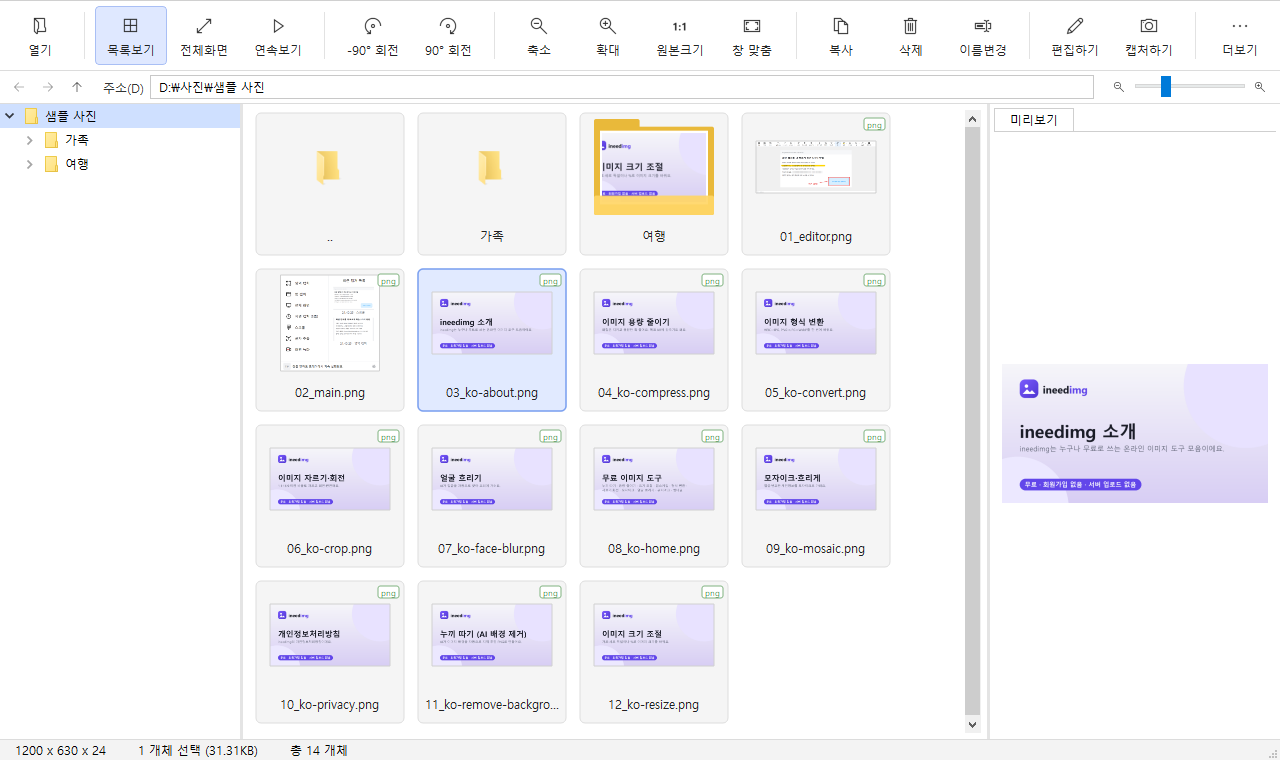

Features
Install and use
- DownloadGet the installer with the button above.
- InstallRun it and click Install. It takes about a minute.
- Make it the defaultTick 'Make SIM See the default image viewer' on the last page. Windows Settings opens; pick SIM See.
- View photosDouble-click a photo or drop it on the SIM See window. Use the wheel for the next one.
Default shortcuts
| Previous / next photo | ← → / wheel |
| Zoom | Ctrl + wheel |
| Actual size | * / 0 |
| Fit to window | / |
| Full screen | Enter / F11 |
| Slideshow | F5 |
| List view | Ctrl+L |
| Rotate | Ctrl+← → |
| Edit | Ctrl+E |
| Delete to Recycle Bin | Del |
| Rename | F2 |
Also listed under More → Shortcuts in the app.
Release notes
1.0.02026-10-31
- First public release
- Fast image viewing: wheel/arrow navigation, zoom, rotate, full screen, slideshow
- Explorer-style list view: folder tree, thumbnail cards, preview
- Quick edits: crop, mosaic, blur, screen capture
- Tray mode, start with Windows, set as default image viewer
FAQ
Is it free?
Yes. It's free, with no sign-up and no ads.
How do I make it my default image viewer?
Tick the option on the installer's last page, or choose More → 'Set as default image viewer' in SIM See, then pick SIM See in Windows Settings. Windows doesn't let programs take over file types on their own, so you choose it once yourself.
Chrome says the file may be malware.
It's a caution warning shown because the app is new, has few downloads, and isn't code-signed yet. Click 'Download suspicious file' to get it. The warning fades as more people download it.
Windows shows a 'Windows protected your PC' warning.
SmartScreen may warn about new programs without a code signature. Click 'More info', then 'Run anyway'.
Which formats does it open?
JPG, PNG, GIF (including animated), WebP, BMP, TIFF, ICO and SVG.
How do I update?
The program tells you when a new version is out. Download the new installer and run it; it installs over the old version and keeps your settings.
How do I uninstall it?
Open Windows Settings → Apps → Installed apps, find SIM See and click Uninstall. The program, its settings and file associations are removed; your photos stay.
Are my photos uploaded anywhere?
No. Viewing and editing happen on your PC. It only reads version info from ineedimg.com to check for updates.
Which Windows versions are supported?
64-bit Windows 10 (version 2004 or later) and Windows 11.
Online image tools
Remove Background
AI removes the background and gives you a transparent PNG.
Compress Image
Shrink file size without visible quality loss — even to a target KB.
Resize Image
Resize to exact pixels or by percentage, in bulk.
Upscale Image
Enlarge small images 2x or 4x with AI, sharply.
Convert Image
HEIC to JPG, and PNG ↔ JPG ↔ WebP in one click.
Crop & Rotate Image
Crop to 1:1, 16:9, passport size — plus rotate and flip.
Blur & Pixelate
Hide faces, plates, and personal info with pixelation or blur.
Blur Faces
AI finds faces automatically and blurs them.
Add Watermark
Add text or logo watermarks to many photos at once.
Thumbnail Maker
Make YouTube thumbnails from templates in minutes.